slack
Version, currently master branch1 version
- master branchlatestDec 16, 2020
github.com/miharekar/slacker
HomePod + Raspberry Pi + Crystal+ Slack = Magic
11 stars
0 dependents
License: MIT
Installation
# Add this to your shard.yml
dependencies:
  slack:
    github: miharekar/slacker
    branch: master
master is a branch, not a release, so this tracks it rather than pinning a version.
Then run:
shards installshard.yml
- Crystal
0.24.2- License
- MIT
- Author
- Miha Rekar <info@mr.si>
- Target
slackfrom src/slack.cr
Dependencies
Runtime Dependencies
- kemal*github: kemalcr/kemal
README
# slack
A simple utility to turn Slack's snooze mode on and off e.g. when you go into a meeting.
With the server running you can teach Siri on your HomePod/iPhone to change your Slack status like this (click for video demo):
[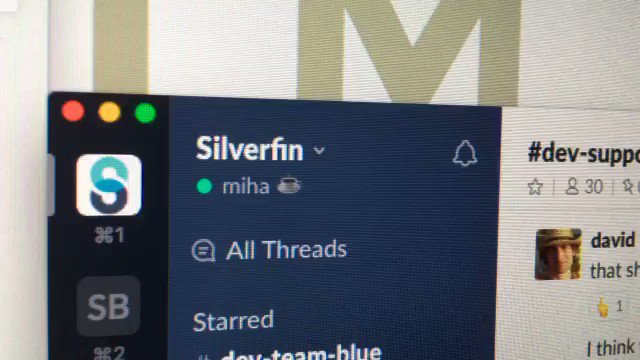](https://twitter.com/mr_foto/status/974351952825016320/video/1)
## Installation
You'll need `secrets.yml` file with Slack's [legacy token](https://api.slack.com/custom-integrations/legacy-tokens). It needs to have this structure:
```
slack:
token: your-token-goes-here
```
You'll also need to install [Crystal](https://crystal-lang.org/). It's trivial to do on a [modern computer](https://crystal-lang.org/docs/installation/).
On a Raspberry Pi you have to install a semi-official build via [Portalier](http://public.portalier.com/raspbian/).
## Usage
### On a modern computer
1. `shards install`
2. `crystal run server.cr`
3. http://localhost:6789/
### On a Raspberry Pi
1. `shards install`
2. `crystal build -p server.cr`
3. `./server`
4. http://raspberrypi.local:6789/
| Normal | Snoozed |
|--------------------------------------------------|---------------------------------------------------|
|  |  |
## Usage with Homebridge
You'll need:
- [homebridge](https://github.com/nfarina/homebridge)
- [homebridge-http](https://github.com/rudders/homebridge-http)
- Both `homebridge` and `server` running in the background via `systemd`
- Homebridge config along these lines:
```
"accessories":[
{
"accessory": "Http",
"name": "Slack",
"switchHandling": "yes",
"http_method": "GET",
"on_url": "http://127.0.0.1:6789/api/on",
"off_url": "http://127.0.0.1:6789/api/off",
"status_url": "http://127.0.0.1:6789/api/status",
"service": "Switch"
}
],
```
## Contributing
Feel free to fork and customize with your own API calls: https://api.slack.com/methods
Documentation
Built from the current release. The first visit to a release nobody has asked for starts its build.
Links
This branch
- Branch
master- Seen
- Dec 16, 2020
- Crystal
0.24.2- Indexed
- yes
Dependents
No indexed shard depends on this one yet.
Repository
github.com/miharekar/slacker
Metadata
- Created
- Aug 12, 2026
- Updated
- Aug 13, 2026
- Synced
- Aug 13, 2026
- Versions
- 1