README
This README is the one indexed from the repository at its latest ref, not from the tag for this version.


grafito
Grafito is a simple, self-contained web-based log viewer for journalctl.
It provides an intuitive interface to browse and filter system logs
directly from your web browser.
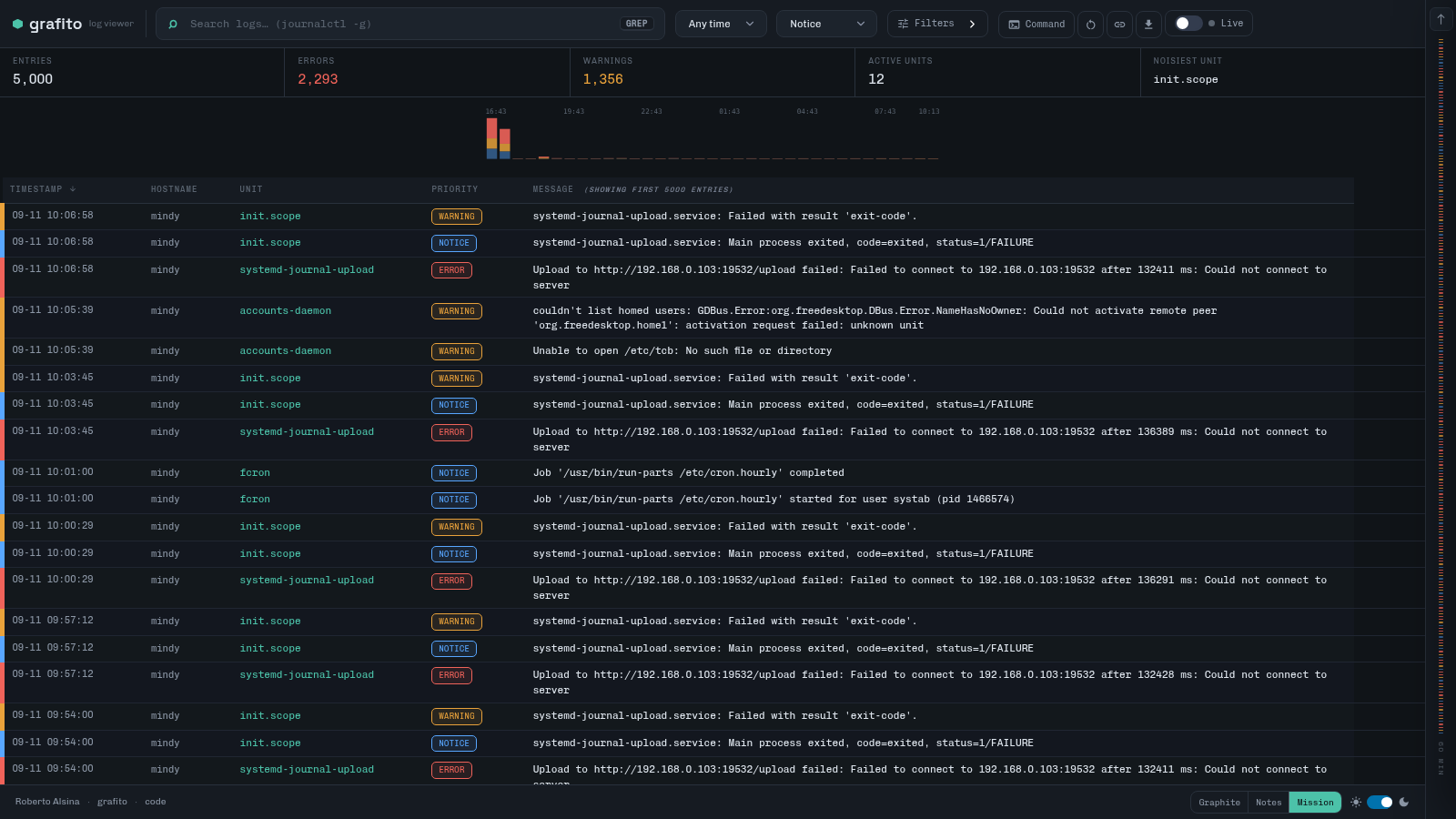
There is a live demo with fake logs at grafito-demo.ralsina.me. Demo builds are fully interactive: every action button works against the fake world (and the AI explanations are enabled), while nothing ever runs on the demo host.
Key features include:
- Mission Control UI - a dense, dark ops-dashboard look with a light/dark toggle.
- Inspector side panel - clicking any log entry opens a Detail tab; Context shows the surrounding entries with the inspected one highlighted, and the AI tab holds the explanation.
- Live log tailing over Server-Sent Events (with an automatic fallback to polling) and an interactive severity minimap with hover previews and click-to-jump.
- An event frequency chart with adaptive buckets: click a bar to jump to that moment in the log.
- Filtering by unit, tag, hostname, time range, priority and a general search query (debounced, works on mobile).
- Mobile-friendly layout: entries collapse into two lines (metadata + full-width message).
- AI-powered log explanations with iterative refinement - ask follow-up questions in context (optional, requires a provider).
- Configurable timezone support - display timestamps in your local timezone or any timezone you prefer.
- Homepage view - a launcher for your self-hosted apps with optional weather widget and reachability dots, configured with a simple YAML file.
- An
llms.txt(llmstxt.org format) served from every instance at/llms.txtfor AI agents browsing the site. - A dynamic user interface powered by HTMX for a smooth experience.
- Embedded assets (HTML, favicon) for easy deployment as a single binary.
- Built with the Crystal programming language and the Kemal web framework.
AI Log Analysis
Grafito includes an optional AI feature that explains log entries in natural language. When configured, each row shows a 🧠 button and the inspector panel has an AI tab with the explanation, plus a reply box so you can ask follow-up questions about that entry.
Providers
Any OpenAI-compatible endpoint works, and there are specific presets for a few services:
| Variable | Provider |
|---|---|
Z_AI_API_KEY | z.ai GLM models |
ANTHROPIC_API_KEY | Anthropic Claude |
OPENAI_API_KEY | OpenAI |
GROQ_API_KEY | Groq |
TOGETHER_API_KEY | Together |
GRAFITO_AI_API_KEY | Any OpenAI-compatible endpoint (with GRAFITO_AI_ENDPOINT) |
The feature is completely optional - Grafito works perfectly without it, and the AI tab only appears when a provider is configured.
Useful environment variables:
export Z_AI_API_KEY="your_api_key_here"     # pick ONE provider key
export GRAFITO_AI_PROVIDER=z_ai             # optional: provider preset
export GRAFITO_AI_MODEL=glm-4.5-flash       # optional: model override
export GRAFITO_AI_ENDPOINT=http://127.0.0.1:4100/v1/chat/completions
export GRAFITO_AI_PROVIDER_NAME="ChatJimmy (Llama 3.1 8B)"  # label in the UI
export GRAFITO_AI_TIMEOUT_SEC=90            # request timeout
export GRAFITO_AI_DISABLE_THINKING=true     # for GLM reasoning models
The AI feature sends ±5 lines of log context around the selected entry to analyze patterns, suggest solutions, and explain complex errors. Prior follow-up questions are replayed too, so the answers stay in context.
Free ChatJimmy endpoint (hidden behind a flag): Grafito can also talk directly to ChatJimmy's free browser endpoint (Llama 3.1 8B, no API key needed) through its built-in provider — an in-process port of jimmy-proxy, so no sidecar is needed. Because that is an unofficial use of a web endpoint, it is never auto-detected and only runs when you ask for it explicitly:
export GRAFITO_AI_PROVIDER=jimmy # or "chatjimmy"The upstream endpoint can change or disappear at any time; since the
provider is built in, a fix means updating Grafito (or pointing
GRAFITO_AI_ENDPOINT at any OpenAI-compatible service instead).
Server Dashboard
Besides the log stream, Grafito has an optional server dashboard:
click the Dashboard button in the top bar (or open /dashboard)
to see current system health, the state of your systemd units, and a
small history chart of memory and disk usage.
- Metrics sampling: a background fiber samples load, memory, disk
usage and unit states every
--sample-interval-secseconds (default 30) and stores the history as daily JSONL files under--data-dir(default/var/lib/grafito), keeping--retention-daysdays (default 7). No database, no extra services. - JSON APIs:
GET /status(current snapshot + unit states) andGET /status/history?since=-1d(sampled history). - Unit actions (opt-in, auth required): start Grafito with
--enable-actionsto get action buttons in the dashboard — start/stop/restart in the unit table, and contextual start/stop/restart plus enable/disable in the service panel (based on the unit's current state andsystemctl is-enabled). Actions require authentication to be configured (GRAFITO_AUTH_USERandGRAFITO_AUTH_PASS); without credentials they are disabled with a warning at startup. What an action may actually do is decided by systemd for the user Grafito runs as: run it as yourself (with polkit rights or--usermode for your own units) and they work; run it as a restricted service user and failed actions say so. Each action asks for confirmation and is logged. - Gotify push alerts (opt-in): set
GRAFITO_GOTIFY_URLandGRAFITO_GOTIFY_TOKENto get notified when a unit fails, when the journal error rate exceedsGRAFITO_ALERT_ERRORS_PER_MINper minute (default 10), or when disk usage crossesGRAFITO_ALERT_DISK_PCTpercent (default 90). Each rule fires at most once every 10 minutes.
Set GRAFITO_DASHBOARD=false (or --dashboard=false) to disable the
dashboard, its endpoints and the sampler completely.
Docker Compose View
The third view, next to the log stream and the dashboard: click the
Compose button in the top bar (or open /compose) to see your
Docker Compose stacks, the services inside each one, and their health.
- Stacks and services: each stack shows its status (from
docker compose ls) and a table of its containers with state, healthcheck verdict, image and ports (fromdocker psand the compose labels, so stacks are found even without config files on disk). - Stack actions (opt-in, auth required, same gate as unit
actions): up (
docker compose up -d), stop, restart, and update (pull images, thenup -d). These run as background jobs and their output streams into the view live, like Dockge. - Service actions (opt-in, auth required): start/stop/restart a
single service via
docker compose. - Service logs: the sidebar's Service logs button opens the full
log view filtered to that service's container — the whole journal
toolkit (table, timeline, search, priorities, live tail) instead of a
bare tail. The filter matches journald's
CONTAINER_NAMEfield, so containers must log through the journald driver: set"log-driver": "journald"in/etc/docker/daemon.json(new containers pick it up when recreated), or addlogging: {driver: journald}to a stack's compose file. There is also a Docker container filter input in the filter panel for ad-hoc use. - compose.yaml view: a read-only view of the stack's compose file.
Set GRAFITO_COMPOSE=false (or --compose=false) to disable the
compose view and its endpoints completely. Docker must be installed on
the host running Grafito for anything to show up.
App Store (Runtipi-compatible)
The compose view has an Add app button (visible when actions are enabled): a browsable catalog of Runtipi-format app stores, so popular self-hosted tools can be installed as ordinary compose stacks without writing a YAML file.
- Catalog: pick a store, search by name and filter by category.
Cards show each app's logo, description and version; the install
form asks for a host port plus whatever the app itself needs
(Runtipi's
form_fields: text, number, boolean, dropdown and generated-secrets fields, validated server-side). - Install: Grafito renders the app's compose file and a
.env(Runtipi'sAPP_*variables plus your answers; secrets are generated once and persisted) under its data dir, then runsdocker compose pull && up -das a streaming job. The app shows up as a normal stack, badged with its name and version, and is reachable on the host port you chose. - Update and uninstall: stacks installed from a store get update
and uninstall buttons. Update re-renders the app when the store
ships a newer package (your answers and secrets are kept) and pulls
the new images. Uninstall runs
downand removes the rendered files; app data under<data-dir>/app-data/is kept. - Compatibility notes: store apps are rendered for standalone
operation — Runtipi's
x-runtipimetadata and shared Traefik network are translated (host port mapping, project-local networks), but domain/TLS exposure through Traefik and Runtipi's shared PostgreSQL are not provided. Apps needing those fail at install time, visibly, in the job output.
Stores are configured as a comma-separated list of name=tarball-url
pairs (any git host's archive endpoint works):
GRAFITO_APPSTORES="official=https://codeload.github.com/runtipi/runtipi-appstore/tar.gz/refs/heads/master,mine=https://example.com/my-store.tar.gz" grafito --enable-actionsSet GRAFITO_APPS=false (or --apps=false) to hide the app store
while keeping the rest of the compose view. Store tarballs are cached
under <data-dir>/appstores/ and only re-downloaded when stale or on
demand.
Process Monitor
Click the Processes button in the top bar (or share a link with
view=processes) for "htop on a page": per-core CPU meters, summary
cards and a live process table (pid, user, state, CPU%, MEM%, VIRT,
RES, TIME+ and command) refreshed every 3 seconds. The table sorts by
any column (click the headers) and filters by user, pid or command.
- Sorting and filtering: every column sorts (click the headers) and the table filters by user, pid or command; both are applied server-side and persisted in the URL, so shared links reopen the view exactly as it was.
- Detail panel: clicking a row opens the sidebar's Detail tab with the process's user, parent, threads, start time, resource usage and full command line, plus a jump into its logs (the owning systemd unit's journal when there is one, a text search otherwise).
- Signal actions (opt-in, auth required): with
--enable-actionsand credentials configured, the table and the detail panel offer SIGTERM, SIGKILL, SIGSTOP and SIGCONT buttons; each asks for confirmation and is logged. - AI explanations (opt-in): with an AI provider configured, the detail panel can explain what a process is doing using its /proc details and recent journal lines mentioning it.
Set GRAFITO_PROCESSES=false (or --processes=false) to disable the
process view and its endpoints completely.
Homepage View
A small launcher for your self-hosted apps, in the spirit of
gethomepage but deliberately simpler: click
the Home button in the top bar (or share a link with
view=homepage) to see a card per service group and, optionally, a
weather widget.
When the homepage view is enabled (the default), it is also what a
bare URL — no view= parameter — lands on; the log stream lives at
?view=logs. With the homepage disabled, the log stream keeps the
bare URL as before.
The page is configured with a YAML file, by default
/etc/grafito/homepage.yml (change it with --homepage-config or
GRAFITO_HOMEPAGE_CONFIG). Until the file exists, the view shows
setup instructions with an example, so enabling it costs nothing:
title: Homelab

# Services declared with only a port are reached at
# http://<hostname>:<port> — the name keeps working from wherever
# you browse (Tailscale MagicDNS, for example), unlike an IP.
hostname: rocky

# Optional weather widget, powered by Open-Meteo (no API key).
weather:
  latitude: -34.9
  longitude: -56.16
  location: Montevideo
  units: metric # or imperial

groups:
  - name: Media
    services:
      - name: Jellyfin
        port: 8096 # same as url: http://rocky:8096
        description: Movies and series
        icon: play_circle # Material icon, emoji or image URL
        check: true # show an up/down dot for this service
  - name: Utilities
    services:
      - name: Home Assistant
url: https://ha.example.com- Icons: a Material Icons name (
play_circle), an emoji, or an image URL; unset icons get a generic glyph. - Locations: each service needs a
urlor aport; a port is combined with the top-levelhostnameintohttp://<hostname>:<port>when the file is parsed. An expliciturlalways wins. - Reachability dots: services with
check: trueget a colored dot — anything answering below HTTP 500 (redirects and login pages included) counts as up. Checks run concurrently with a 2.5s timeout and are cached for a minute. - Weather: current conditions plus today's high/low from Open-Meteo, refreshed every 30 minutes and shown in metric or imperial units.
Set GRAFITO_HOMEPAGE=false (or --homepage=false) to disable the
homepage view and its endpoint completely.
Editing the homepage from the browser
With actions enabled (the same --enable-actions + authentication
the compose actions need), the homepage shows an Edit button next
to its title. It opens a YAML editor for homepage.yml in the
inspector panel, following the stack file editor's flow: Review
changes shows a diff, Apply (after a confirm) validates the
draft by parsing it exactly the way the page does and then writes it
— atomically, with the previous version kept alongside as
homepage.yml.grafito-bak. The page refreshes immediately behind the
panel. The setup hint shown for a missing config file has the same
button, prefilling the editor with the example above, so a fresh
install can build its homepage without touching a shell.
Two details worth knowing:
- The editor starts from the effective config: if the settings
view's homepage overrides (title, hostname, weather) are active,
their values are baked into the draft, and applying retires the
overrides — after the first apply,
homepage.ymlis the single source of truth. When no overrides are set, the file's own text is served (comments included), so hand-authored formatting survives. - The config path must be writable by the grafito process. A
read-only mount (e.g.
:roon a docker bind mount) is reported clearly in the editor instead of failing silently.
Settings and Onboarding
The gear button in the top bar opens the settings view
(?view=settings): login credentials (with a Sign out button), the
display timezone, the AI provider (with API key and model), the
homepage basics
(title, hostname, weather location), the compose stacks
directory, the app store sources and the Gotify notification
settings (URL, token, alert thresholds). Everything applies live —
no restarts — and is stored in settings.json under the data dir
(0600; passwords bcrypt-hashed, other secrets in plaintext exactly
like the DNS provider token;
disable the view with --settings=false).
The stacks directory (--stacks-dir / GRAFITO_STACKS_DIR) makes
the Compose view list stacks that exist on disk but that docker
does not know about — never started, or fully removed — as
stopped, with their compose files, so they can be started from
the view like any other stack. A stack's name is its compose file's
top-level name: when declared, its directory name otherwise.
Configuration precedence is boot wins: values set via CLI flags,
environment variables or GRAFITO_CONFIG are never overridden by the
settings view, and fields owned by the environment render as notices
instead of inputs. So a deployment like
GRAFITO_AUTH_USER=... GRAFITO_AUTH_PASS=... keeps managing
authentication itself, while everything else becomes editable at
runtime.
On a fresh instance — no credentials anywhere — the settings view
renders as the onboarding wizard: create a login (required),
pick a timezone and homepage basics (optional), optionally paste an
AI key. The browser lands on it automatically, and the wizard's
save endpoint is the one state-changing endpoint that works while
unauthenticated. The moment credentials exist it closes forever and
everything else requires signing in at /login (credentials are
resolved on every request, so changing your password in the view
takes effect immediately — and ends your other sessions when the
username changes).
Adding a View
The auxiliary views (dashboard, compose, processes, homepage) are pluggable. Adding another touches exactly five small places:
- Backend module: create
src/<name>_dashboard.cras a module with arender_htmlfragment and aregister_routesmethod that registers its endpoints (seesrc/process_dashboard.crfor the smallest example). Require it and callregister_routesfromGrafito.register_routesinsrc/grafito.cr, plus a--<name>=BOOLflag if it should be optional. - Fragment div: a
<div id="<name>-view" hidden hx-get="<endpoint>" hx-trigger="every Ns[...]">inside<main>insrc/assets/index.html. - Switcher button: a
<button data-view-mode="<name>">in the#brand-switcher. - Registry entry: one entry in the
VIEWSobject insrc/assets/index.html(element id, endpoint, poll query, URL state persistence/restore — see the dashboard and processes entries). - Optional CSS: nothing is needed for log-chrome hiding; only add rules if the view brings its own topbar widgets.
Mutual exclusion between views, the switcher highlight, URL persistence and restore are all handled generically.
Authentication: login sessions
Grafito authenticates browsers with a login page and cookie
sessions (powered by kemal-session):
visit any URL while signed out and you land on /login, a small
standalone page with no JavaScript. Signing in creates a server-side
session — the cookie only carries a signed, HttpOnly session id —
valid for 7 sliding days, stored under <data-dir>/sessions/ so
restarts and container recreations keep you logged in. The settings
view's Access section has a Sign out button, and renaming the
username invalidates every outstanding session.
Where the credentials come from is unchanged: the GRAFITO_AUTH_USER
/ GRAFITO_AUTH_PASS environment variables (or the onboarding
wizard's choices, stored in settings.json). Passwords in
settings.json are stored as bcrypt hashes; a pre-session
plaintext value is upgraded automatically on the first successful
login.
Basic auth is gone: there is no WWW-Authenticate handshake and
Authorization headers are ignored. Scripts that used to send them
should keep a cookie jar instead:
$ curl -c /tmp/grafito.jar -d 'username=you' -d 'password=your-password' \
    http://127.0.0.1:3000/login
$ curl -b /tmp/grafito.jar http://127.0.0.1:3000/server-info
Without a session, htmx requests from the app get a 401 with an
HX-Redirect (the page redirects to /login, which is also what a
session expiring mid-view looks like), browser navigations get a
302, and anything else a plain 401.
Securing a Remote Deployment
--enable-actions unlocks privileged operations (systemd unit
start/stop/restart, process signals), and over plain HTTP anyone on the
network can read the session cookie that authorizes them.
For anything beyond localhost, put grafito behind a TLS-terminating
reverse proxy and keep it bound to 127.0.0.1 (the default). Any
proxy works with the default setup; two common examples:
Caddy (automatic certificates):
grafito.example.com {
    reverse_proxy 127.0.0.1:3000
}
Nginx (certificates via certbot):
server {
    listen 443 ssl;
    server_name grafito.example.com;

    location / {
        proxy_pass http://127.0.0.1:3000;
        proxy_set_header Host $host;
    }
}
Then set GRAFITO_AUTH_USER / GRAFITO_AUTH_PASS (or create the
login through the onboarding wizard) and add --enable-actions: the
proxy encrypts both the session cookie and the privileged commands it
authorizes. Grafito logs a warning at
startup if actions are enabled on a non-loopback bind address.
As a second layer of defense, all state-changing POST endpoints reject
cross-site requests: browsers' Sec-Fetch-Site header is honored, and
Origin/Referer are checked against the host when present, so a
malicious page cannot ride your session to trigger actions. Known
trade-off: a request carrying none of those headers (very old
browsers, or a no-referrer policy) is allowed through because
non-browser clients like curl send none either — another reason to
keep authentication on for anything beyond loopback.
If you don't need actions remotely, bind to 127.0.0.1 and skip
--enable-actions entirely — everything else (logs, dashboard,
compose, processes) works read-only.
App Access: names, certificates and domains
Installed apps are always reachable at http://<host>:<port> —
grafito links them from the compose view, the app store and the
homepage's "Installed apps" group. Nothing below is required; it adds
the option to route apps by domain with automatic HTTPS.
The Access panel (the key button in the compose toolbar) covers the whole setup:
- A domain you own. The one hard prerequisite for HTTPS. Any registrar works; you need DNS hosted somewhere with an API (Cloudflare, DigitalOcean, DuckDNS, Route53, Gandi).
- One wildcard record.
*.home.example.com → your server's IP(or, for LAN-only setups,→ 192.168.x.x). One record covers every app forever — new apps becomeapp.home.example.comautomatically. - One wildcard certificate. Grafito obtains and renews it with
the lego binary using the
DNS-01 challenge — ownership is proven through your DNS
provider's API, so no ports need to face the internet and
names that only resolve on your LAN still get valid certificates.
Install lego (e.g.
pacman -S lego,apt install legoor download a release) and set its path in the panel. Renewal is checked daily and runs automatically when the certificate has less than 30 days left. - The managed proxy. Grafito runs a small managed caddy container (host network, ports 80/443) that terminates TLS with the wildcard certificate and routes each domain to the app's local port. Start and stop it from the Access panel; the route table shows which domain goes to which app.
To route an app, give it a domain in the install form
(atuin.home.example.com). Routed apps show https:// links
everywhere; everyone else stays on host:port.
Resolving the names on your LAN
With public DNS only, the names resolve everywhere but traffic crosses the internet (port-forward 80/443 if you want that). For a LAN-only setup, point the wildcard at the server's LAN IP and add a local rewrite in whichever resolver your devices use:
- AdGuard Home / Pi-hole: DNS rewrite
*.home.example.com→192.168.x.x. - Most routers: a local DNS / hosts entry (some support wildcards, some need one entry per app).
- Single machine:
/etc/hostsentries.
Certificates keep renewing through DNS-01 regardless — the challenge never needs the names to resolve publicly.
Safe remote access without opening ports
Install Tailscale (it is in the app store)
on the server and your devices: every app is reachable on its
host:port or domain over your tailnet, with no port forwarding at
all.
Degrading
Everything here is additive. Stop the proxy, disable it in settings,
let a certificate lapse, or never configure it at all — apps remain
reachable at http://<host>:<port>.
Timezone Configuration
Grafito displays timestamps in your local timezone by default, but you can configure it to use any timezone you prefer. This solves the issue of having to mentally convert UTC timestamps to your local time.
To configure timezone:
-
Command line option:
./bin/grafito --timezone America/New_York ./bin/grafito --timezone Europe/London ./bin/grafito --timezone GMT+5 ./bin/grafito --timezone local # Default behavior -
Environment variable:
export GRAFITO_TIMEZONE="America/New_York" ./bin/grafito -
In systemd service:
Environment="GRAFITO_TIMEZONE=America/New_York"
Supported timezone formats:
- IANA timezone names:
America/New_York,Europe/London,Asia/Tokyo, etc. - GMT offsets:
GMT+5,GMT-3,GMT+5:30(supports hours and minutes) - Special values:
local(system timezone),utc(UTC timezone)
By default, Grafito uses your system's local timezone, so most users won't need to configure anything unless they want to use a different timezone.
User Systemd Mode Configuration
Grafito supports user systemd instances for users without root privileges. When enabled, Grafito uses journalctl --user and systemctl --user to access user-level services and logs.
To enable user mode:
-
Command line option:
./bin/grafito --user -
Environment variable:
export GRAFITO_USER_MODE=true ./bin/grafito -
In systemd user service:
[Service]
Environment="GRAFITO_USER_MODE=true"
ExecStart=/usr/local/bin/grafito -b 127.0.0.1 -p 3000
Notes:
- User mode only shows logs and services for the current user
- System-level logs and services are not accessible in user mode
- Default is system mode (requires appropriate permissions)
Installation
If you are using Arch Linux grafito is available in AUR
Using the Install Script (Linux with systemd)
For a quick installation on Linux systems with systemd, you can use the provided installation script. This script will:
- Download the correct Grafito binary for your system's architecture (amd64 or arm64) for the latest version tagged in the script.
- Install it to
/usr/local/bin/grafito. - Set up and enable a systemd service for Grafito.
To use the script, run the following command:
curl -sSL https://grafito.ralsina.me/install.sh | sudo bashAfter installation, Grafito should be running and accessible at http://<your_server_ip>:1111 (or the port configured in the service). You can check its status with systemctl status grafito.service.
Prebuilt Binaries
To install from prebuilt binaries, download the latest release from the
releases page. The binaries are
available for linux, both x86_64 and arm64 architectures. You can get an example
grafito.service from the repository.
Install from source:
-
Clone the repository:
git clone https://github.com/ralsina/grafito.git cd grafito -
Install Crystal dependencies:
shards install -
Build the application:
shards build --releaseThis will create a single executable file named
bin/grafito
Run using Docker
It doesn't make much sense to run Grafito in a container, but if you want to:
docker run -p 3000:3000 -v/var/log/journal:/var/log/journal ghcr.io/ralsina/grafito:latestOr if you are using ARM:
docker run -p 3000:3000 -v/var/log/journal:/var/log/journal ghcr.io/ralsina/grafito-arm64:latestUsage
Simply run the compiled binary:
./bin/grafitoThen open your web browser and navigate to http://localhost:3000
(or the port specified if configured differently).
The application requires journalctl and systemctl to be
available on the system where it's run.
Running with systemd
To run Grafito as a systemd service, you can create a service file.
-
Create the service file:
Create a file named
grafito.servicein/etc/systemd/system/(or~/.config/systemd/user/for a user service) with the following content. Adjust paths and user/group as necessary.[Unit] Description=Grafito Log Viewer After=network.target [Service] Type=simple DynamicUser=yes # If set to "systemd-journal" it can access all logs in the system # Change if that is not what you want. Group=systemd-journal # --- Authentication Configuration --- # Set these environment variables to define the login credentials. # If GRAFITO_AUTH_USER and GRAFITO_AUTH_PASS are not set, Grafito will run without a login. Environment="GRAFITO_AUTH_USER=your_grafito_username" Environment="GRAFITO_AUTH_PASS=your_strong_grafito_password" # Replace with the actual path to your Grafito directory WorkingDirectory=/usr/local/bin/ # Replace with the actual path and options to the Grafito binary ExecStart=/usr/local/bin/grafito -b 0.0.0.0 -p 1111 Restart=on-failure [Install] WantedBy=multi-user.target -
Reload systemd daemon:
sudo systemctl daemon-reload -
Enable the service (to start on boot):
sudo systemctl enable grafito.service -
Start the service:
sudo systemctl start grafito.service -
Check the status:
sudo systemctl status grafito.service
Running with systemd socket activation
To conserve resources and enable tighter sandboxing, it's also possible to run
grafito as a socket-activated
systemd service. This makes grafito start up on demand. You can also use the
--idle-timeout-sec flag to make grafito shut down after a set period without
any new requests.
-
Create the service file:
Create a file named
grafito.servicein/etc/systemd/system/(or~/.config/systemd/user/for a user service) with the following content. Adjust paths and user/group as necessary.[Unit] Description=Grafito Log Viewer After=network.target [Service] Type=simple DynamicUser=yes # If set to "systemd-journal" it can access all logs in the system # Change if that is not what you want. Group=systemd-journal # --- Authentication Configuration --- # Set these environment variables to define the login credentials. # If GRAFITO_AUTH_USER and GRAFITO_AUTH_PASS are not set, Grafito will run without a login. Environment="GRAFITO_AUTH_USER=your_grafito_username" Environment="GRAFITO_AUTH_PASS=your_strong_grafito_password" # Replace with the actual path to your Grafito directory WorkingDirectory=/usr/local/bin/ # Shut down after 5 minutes without requests ExecStart=/usr/local/bin/grafito --idle-timeout-sec=300 -
Create the socket file:
Create a systemd socket file named
grafito.socketin/etc/systemd/system/(or~/.config/systemd/user/for a user service) with the following content. This file should have the same basename as the service file created above - in this case,grafito.[Unit] Description=Socket for grafito log UI [Socket] # Set the port and, if desired, address to listen on here ListenStream=1111 NoDelay=true [Install] WantedBy=sockets.target -
Reload systemd daemon:
sudo systemctl daemon-reload -
Enable and start the socket:
sudo systemctl enable --now grafito.socket -
Make a request to wake the server:
curl http://localhost:1111 -
Check the status:
sudo systemctl status grafito.service grafito.socket
Journald Permissions
By default, journalctl (and therefore Grafito) can only access the logs of the user running the command. To allow Grafito to access all system logs, the user running the Grafito process needs to be part of a group that has permissions to read system-wide journal logs.
Typically, this is the systemd-journal group (the name might vary slightly depending on your Linux distribution).
-
Add the user to the
systemd-journalgroup: Replaceyour_userwith the actual username that will run the Grafito process.sudo usermod -a -G systemd-journal your_user -
Apply group changes: The user will need to log out and log back in for the new group membership to take effect. If Grafito is already running as a service under this user, you might need to restart the service:
sudo systemctl restart grafito.service
Alternatively, if you are running Grafito directly (not as a service) and want to grant
it temporary access for a session, you might run it with sudo, but this is generally
not recommended for web applications for security reasons. Configuring the user with
appropriate group membership is the preferred method.
Security Note: Granting access to all system logs means that any user who can access Grafito will be able to see these logs. Ensure that Grafito itself is appropriately secured if it's exposed to untrusted networks.
Logs from multiple hosts
Systemd Journald offers mechanisms to centralize logs from multiple hosts onto a single machine. This is particularly useful for managing logs in a distributed environment. Two common tools for this are systemd-journal-remote and systemd-journal-upload.
systemd-journal-upload: This service runs on client machines and uploads their local journal entries to a remotesystemd-journal-remoteinstance. It can be configured to send logs securely over HTTPS.systemd-journal-remote: This service runs on a central log server and listens for incoming journal data (typically via HTTP/HTTPS) fromsystemd-journal-uploadinstances. It then stores these logs in the local journal on the central server.
When logs from multiple hosts are consolidated onto the server where Grafito is running, each log entry will typically retain its original _HOSTNAME field. This is where Grafito's Hostname filter becomes very useful.
By using the "Hostname" filter in the Grafito UI, you can easily isolate and view logs originating from a specific client machine, even though all logs are stored and queried on the central Grafito server. For example, if you have logs from server1, server2, and web-node-alpha all being sent to your Grafito host, you can simply type server1 into the Hostname filter to see only its logs.
Configuration Sketch
-
On the Central Log Server (where Grafito runs):
- Install and configure
systemd-journal-remoteto listen for incoming logs. You'll typically configure it to use HTTPS for security. - Ensure the journal on this server has enough storage space.
- Install and configure
-
On Each Client Host:
- Install and configure
systemd-journal-upload. - Point it to the address and port of your central
systemd-journal-remoteinstance. - Configure necessary authentication (e.g., client certificates) if HTTPS is used.
- Install and configure
Once set up, logs from all client hosts will appear in Grafito on the central server, and you can use the Hostname filter to distinguish between them. Refer to the official systemd documentation for detailed instructions on configuring systemd-journal-remote and systemd-journal-upload.
Development
-
Prerequisites:
- Ensure you have Crystal installed.
- Ensure
journalctlandsystemctlare available on your development machine.
-
Clone and Setup: Follow the "Install from source" instructions above to clone the repository and install dependencies using
shards install. -
Run for Development: To run the application locally with automatic recompilation on changes, you can use a tool like Sentry.cr or simply recompile and run manually:
shards run grafitoThe application will typically be available at
http://localhost:3000. -
Linting: This project uses Ameba for static code analysis. CI builds it from the vendored source, so the equivalent local command is:
crystal build lib/ameba/bin/ameba.cr -o bin/ameba && bin/ameba src spec -
Demo site: The public demo at grafito-demo.ralsina.me runs fake journal data with AI enabled. It is deployed as a docker compose stack (see
demo-site/compose.yml) running the demo image; AI explanations come from Grafito's built-in ChatJimmy provider, so the stack needs no sidecar../deploy_site.shbuilds, pushes and deploys it.Demo builds (compiled with
-Ddemo_mode) are fully interactive: every action button is shown and works against the fake world — stopping a unit shows it as dead, installing an app store app creates its stack, killing a process removes it from the table — and simulated state lives until the demo container restarts. Job output is labeled "Demo mode: this output is simulated", and actions that cannot be simulated answer with a demo notice. No docker, systemctl or journalctl command ever runs on the demo host. -
Real instance: The real Grafito instance (actual system journal, also with AI via the built-in ChatJimmy provider) runs as the docker compose stack in
/data/stacks/grafitoon the server, using the publishedghcr.io/ralsina/grafito-arm64image.real-site/compose.ymlis the source of truth for that stack: it bind-mounts/var/log/journal,/etc/machine-idand/etc/localtimeread-only so the container sees the host journal in the host timezone.
Contributing
All changes land through pull requests — main is protected and
requires the CI check to pass before merging.
- Fork it (https://github.com/ralsina/grafito/fork) or create a
branch in the repo (
git checkout -b my-new-feature) - Commit your changes (
git commit -am 'Add some feature'; conventional-commit style messages keep the changelog tidy) - Push and open a pull request
- CI (format, linter, both test suites) must pass on the PR
- A maintainer merges; use
gh pr merge --auto --mergeto queue it
If src/assets/ files change, the committed concatenated and minified
bundles must be regenerated too (make assets-fresh regenerates them
and fails if they were stale) — pre-commit and CI both check this.
Contributors
- Roberto Alsina - creator and maintainer